Saturday, 16 November 2013

Windows 8 Boot Issues? Try Fixing the Master Boot Record (MBR) or Boot Configuration Data (BCD)


Windows 8 received a decent amount of enhancements on the desktop side that I tend to appreciate versus running Windows 7, even if that means I get Metro standing in the middle here and there occasionally. One such area of improvement is notification management and how it handles updates and system restarts. Running the final version of the OS for a few months now, it’s been a painless affair until this past weekend.
I shut down my desktop PC with the purpose of connecting new hardware and on the way out I was prompted to “update and shutdown”. Sure, why not. I went on to install a secondary SSD for maintenance purposes and apparently that was enough for my system to refuse booting right after. I tried to backtrack to no avail.
"Reboot and select proper boot device"
I bet you have no love for the message, neither do I.
Because I had disconnected a few devices, it took me a while to narrow things down to my boot SSD, and for a second I even thought the SSD had gone forever kaput. After booting with a different drive and noting I could read all my data on the drive in question, I took a deep breath and started to troubleshoot the boot record. Once you settle on the idea that it’s not a hardware problem and you are unable to boot up, your best bet is to try to fix the MBR (Master Boot Record).
With a long history of dual booting different versions of Windows over the years, finding a corrupt MBR, boot sector, or Boot Configuration Data (BCD) is nothing new, but it took me longer than usual to come to a solution. Here are a few things you can try and hopefully get back to full speed in no time.
First of all, you will need a bootable disc or pen drive. Here’s a quick guide to accomplish that if you don’t already have one handy. Although it's not a requirement, to be on the safe side it's recommended at this point that you disconnect other storage devices from your PC and leave only the SSD/HDD that you are troubleshooting.
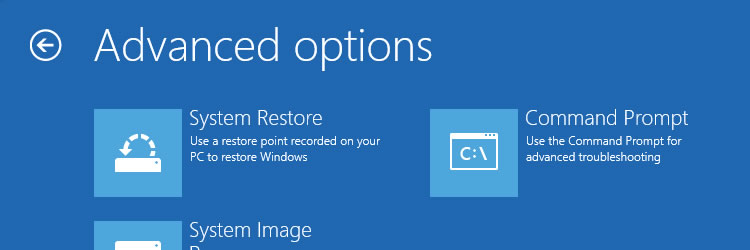
Booting into the Windows 8 setup, select “Repair your computer” in the bottom part of the window, then “Troubleshoot” and “Advanced options”. Here I was given a good reminder of another cool Windows 8 feature. If you have a restore point created you can go back to that working copy of the OS without losing your data. Well, I didn’t have any.
So the first thing you will want to try is the Automatic Repair.
If that fixes your boot problem, you had it easy and go on to create a restore point for another time you are out of luck. If Windows is unable to fix your issue, read on.
Go back to the Advanced options and choose the Command Prompt. Going for the next easiest way to fix the problem, enter the following four commands into the prompt:
bootrec /fixmbr
bootrec /fixboot
bootrec /scanos
bootrec /rebuildbcd
After receiving a success confirmation. Close the CMD window and restart your PC.
If you are booted into Windows, excellent! If not, let’s try one last thing. Follow the previous steps until you have landed into the Command Prompt.
Enter the “bcdedit” command. A lists of items will appear under Windows Boot Manager and under Windows Boot Loader. Look for the following items:
  • Under Windows Boot Manager, the Device item should be set to unknown.
  • Under Windows Boot Loader, the Device and os device items should be set to unknown.
Run the following three commands to correct the settings:
bcdedit /set {default} device partition=c:
bcdedit /set {default} osdevice partition=c:
bcdedit /set {bootmgr} device partition=c:
One last thing to try (though in theory, it's the repeating what we’ve done before) browse to the folder X:SourcesRecovery and then enter “StartRep.exe” which executes another automated startup repair utility.

Get the Most Out of Your Google Search Results


With Bing slowly but steadily rising in popularity Google is facing more pressure than ever to rejuvenate the search experience it has to offer. Sure, they still hold a clearly dominant share of the market at about 64.6% (versus 19.3% for its closest rival, Yahoo), but then again Google has proven to know better than to just rest on its laurels.
Over the years, the Mountain View-based company has been enhancing its search engine not only to provide quality and relevant results, but also let users be more particular about their searches with dozens of special features and operators. Despite this, I am willing to bet that most people just use the vanilla search as is.
Fair enough. I mean Google is supposed to be easy to use, so why complicate it? Well, for starters, these functions are meant save you a lot of time and effort. I'm sure the more inquisitive of you know all about the basics, like quoting your searches to find exact matches, and then some -- but that's truly just the tip of the iceberg. Today we'll be highlighting some of our favorite Google search tricks.
Special Features
Beyond the standard word search capability, Google can quickly display things like the current time or weather of a particular city; it can be used to track packages; as a calculator for basic and fairly advanced math operations; and can convert things like currency, weights and measures.
Time and weather
To find the time in another corner of the globe simply enter "time" and then the name of a large city or country --time Berlin for example. Likewise, weather humidity, temperature and forecast can be viewed by typing the word "weather" followed by the desired location.

Calculator and package tracking
Use Google for math equations by entering them as a query -- 3*2 will work, but so will a more complex calculation like 94/36*(sqrt 34)^3. Most symbols and integers can be swapped with written words, too. Typing the tracking number for your UPS, FedEx or USPS package directly into the search box will get you quick links to easily track the status of your shipment.

Unit conversions
Conversions are just as easy. Simply enter a number followed by something like USD to GBPmm to inch,Fahrenheit to Celsius. Be it teaspoons, microseconds, bytes or kilometers, Google's conversion calculator is quite featured, and can be used for just about any unit that comes to mind.
Other tweaks
While all of that is handy and easy to use, things get much more intricate. By using the proper strings of text, you can even use Google search in place of a P2P program to find songs, video clips, and other media. There are also plenty of minor hacks and tweaks. For instance, Omgili shows how to tinker with a Google search URL to get real-time results. This is particularly useful for finding news related to current events; here's the latest on IDF (in progress as of this writing) within a 30 minute timeframe, by the way.
Query Refinements
Finally, below is a table of a few functions that we have found to be useful -- but they only scratch the surface, really. We would love to hear about the small search adjustments you make to refine or otherwise improve your Google results in the comments
FunctionPurposeExample
+Includes specified words.netbook +11.6 +ion
-Excludes specified words.gaming keyboard -logitech
*The standard wildcard symbol. Used as a placeholder for unknown words.traditional * food
~Searches for words similar to the one it's paired with.first computer build ~help
..Searches for a numeric range -- especially useful for dates or prices.halo pc $0..$15
define:Can be used for various things, including words, acronyms, and phrases to offer specialized search results.define:monkey see monkey do
filetype:Filters out results by specified file type.filetype:torrent ubuntu
related:A great way to find sites that have similar content.related:techspot.com
site:Search for site-specific content.Lynnfield site:techspot.com
Combining operatorsYou can use most of these search functions in a single query to further enhance your results+microsoft +yahoo ~talks "Matthew DeCarlo" site:techspot.com

Did you know?
Google is cooking up an innovative personal communication and collaboration tool dubbed Google Wave. In short, it is a web-based service, computing platform and protocol designed to unite email, IM, wiki, and social networking. Based on recent information posted on its blog, it appears like Google Wave may be entering the public beta phase next week. 

Turn Off your Display Using a Windows Shortcut and More


Although it may seem unnecessary at first thought, there is some practicality in having a software shortcut to instantly turn off your monitor. It could prove very useful with notebook computers, if yours doesn't have a keyboard shortcut for shutting down the screen. It could also be convenient in the presence of multiple monitors, your power button might be broken, or you may indeed just be that lazy.
Whatever the case may be, setting up a Windows shortcut to turn off your display(s) couldn't be any easier with the help of a small utility called Wizmo, that can be downloaded here.
The downloaded file will be a small standalone executable. You'll want to move this file somewhere convenient for permanent keeping. I'm tossing mine in a new program folder (C:Program FilesWizmo).
Upon running the program, you'll notice that it doesn't present you with any options or functionality, and that's because this program is command based. To make stuff happen, you'll need to create a shortcut and add a recognizable command, something that you will learn can play to your advantage given the myriad of options available in Wizmo.
Once you have the executable (wizmo.exe) stored somewhere, right click the file and choose Create shortcut, which should give you a new file named "wizmo.exe - Shortcut".
Right click the new shortcut file, and choose Properties. Under the Shortcut tab, you should see a text box labeled Target. After the full filename path, enter a single space and the desired command. The command to turn off your monitor is -monoff.
Click OK and test it out by double clicking the shortcut. At this point your monitor should have gone blank. You can click your mouse button or perform some other action to bring back the display.
Assuming it works, it's up to you where you can to place this shortcut and how you want to customize it. For example, I renamed my shortcut to "Monitor Off" and placed it on my taskbar, then changed the icon to something more fitting.
To change the icon: Right click > Properties > Shortcut tab > Change icon > Browse > C:Windowssystem32imageres.dll > Open > Select icon > OK.
But the power of Wizmo doesn't stop there. Here we have illustrated a single one of its different potential uses. Using similar commands Wizmo can also put your PC in standby, hibernation, lock your workstation, reboot, open/close your CD drive's tray, set your system's audio level, and even combine the different commands.
For example: wizmo volume=0 monoff volume=40
That chain of commands will mute your computer and shut down the monitor(s), then upon your return increase the volume level to 40%.
For a full up to date list of commands head over to the utility's site.

Prevent Windows Update From Automatically Restarting Your PC


Windows Update's automatic reboot can be one of the most annoying "features" in Microsoft operating systems. While it's a bit less pushy with Windows Vista and 7, allowing users to postpone the restart for up to four hours, you may not be at the computer to intercept the first or subsequent notifications.
In many cases this isn't a major deal. However, it can be frustrating if you step away from a work session and come back to a freshly rebooted system. You might also be downloading a large file or letting a lengthy operation run while away from your PC, expecting it to be finished upon return.
Fortunately there are various workarounds available. Today we will mention a few that have been tested to work in XP, Vista and Windows 7 systems.
Temporary Workarounds
The methods below will disable the nagging reminders after Windows Update runs by stopping the associated service. They are only temporary solutions because Windows will automatically start the service again when you reboot, which means you might be faced with the same problem the next time Windows updates are installed. In other words, this is your one-time off solution.
Windows XP: Open Start > Run and enter the following command: net stop "automatic updates" OR sc stop wuauserv. You can also suspend the process with PsSuspend and the command pssuspend wuauclt.
Windows Vista/7: Open Start and search for cmd. Right click on the found program and click Run as administrator. Enter the command net stop "windows update" and you're good to go. Likewise, you can suspend the process with PsSuspend and the command pssuspend wuauclt.
Permanent Fix
Unfortunately most of the everlasting system tweaks out there are unavailable to "Home" users -- that includes even Home Premium versions as these lack the group policy editor and a few other "advanced" Windows features. However, the third party application Shutdown Guard works well, and even prevents other applications from rebooting your PC.
For users of Professional, Ultimate and other upper-tier versions of Windows, you can adjust a few things in your group policy settings or system registry:
Windows XP: Start > Run > enter gpedit.msc. Navigate to Local Computer Policy > Computer Configuration > Administrative Templates > Windows Components > Windows Update. Double click "No auto-restart for scheduled Automatic Updates installation," then choose Enabled and click OK.
Windows Vista/7: Start > search for gpedit.msc. Navigate to Computer Configuration > Administrative Templates > Windows Components > Windows Update and enable "No auto-restart for scheduled Automatic Updates installations".
All non-Home users can apply the same policy change by adding a new key to the registry. Go to Start > Run/Search for regedit. Navigate to HKEY_LOCAL_MACHINE SOFTWARE Policies Microsoft Windows WindowsUpdate AU. Create a new 32-bit DWORD value named NoAutoRebootWithLoggedOnUsers and give it a value of 1. You can also download and double click on this registry key to add the key automatically.
Did you know?
Keeping your operating system up to date is vital to having a malware-free computer. But even with Windows fully patched, any of your installed applications can be a potential point of entry for attackers should you forget to grab the latest version available. Utilities such as Secunia's PSI can provide an extra layer of protection by scanning your computer for installed software, and then warning you of potentially unsafe applications that have available updates. 

Enable Windows 7's Hidden "God Mode"


As indicated by enthusiasts around the Web, there is a simple way to access a hidden "God Mode" in Windows 7 and Vista. With a name like that, your expectations might be a little high -- and no, Windows is not secretly invincible -- but the trick is awesome nevertheless.
"God Mode" simply provides users with a centralized Control Panel for all of Windows' settings, from changing your desktop background to setting up a VPN or partitioning your hard drive. In all, there are nearly 50 categories and most have several entries.
It's almost comical how simple it is to access it:
  1. Create a new folder. Anywhere is fine, I created one on my desktop.

  2. Rename the folder to: God Mode.{ED7BA470-8E54-465E-825C-99712043E01C} *Note: The "God Mode" chunk can be called anything you want.

  3. The default folder icon will change to a Control Panel icon, and you can open it to view all of the settings.
User reports suggest that it may crash Windows Vista 64-bit, so proceed with caution. For what it's worth, I've successfully used the "feature" on Windows 7 Home Premium and Ultimate 64-bit.
As an additional note, having the undocumented feature disclosed all over the Web, Microsoft has decided to be more open about it admitting similar commands have been available even before Vista. They have also revealed other text strings that create similar "God Mode" folders, a list is available here.

Effortless Ways to Download Video Content from YouTube and Other Sites

If you've browsed the Web at all in the last few years, there's a good chance you've watched a ton of YouTube videos. The site serves over a billion every day both on their own and through the zillions of sites that choose to embed videos hosted on their platform. We bet at least once you've wondered about downloading a clip and although there are many tips and services around to help you accomplish such a feat, here's a few we consider to be the best.
A two-year-old post on the Google Operating System blog offers the easiest. Simply add this bookmarklet to your browser's bookmarks, load a YouTube page with a video, and then clicking the bookmarklet will provide you a direct download of the video in various qualities including 720p/1080p and in the MP4 format.
This method should work just fine for Internet Explorer 8, Chrome, Firefox, Safari and Opera. Here's a short video showing how it works (ironically hosted at competing service vimeo):
Many popular media players can handle MP4 files, such as Windows Media Player, VLC, MPlayer, iTunes, QuickTime, and my personal favorite, Zoom Player. If you need to convert the video, there are plenty of free applications around like MyVideoConverterTotal Video ConverterAny Video Converter. I generally use Xilisoft's Video Converter Ultimate, but it'll cost you.
Most or all of those applications can also convert MP4 files to MP3 if you're after the audio only. There are also more automated approaches. Various free online services will automatically convert the YouTube content to an audio or video file for you to download, and there are seemingly dozens of Firefox add-ons that will do the same.
A Firefox favorite, Video DownloadHelper works on dozens of sites besides YouTube (MySpace, DailyMotion, Porkolt, iFilm, DreamHost, etc.) and includes a slew of configuration and automatic conversion options. 1-Click YouTube Video Download is less feature-rich and works by placing direct download links on YouTube pages so you can save the content in FLV, MP4, and 3GP formats.

Effortless Ways to Download Video Content from YouTube and Other Sites


If you've browsed the Web at all in the last few years, there's a good chance you've watched a ton of YouTube videos. The site serves over a billion every day both on their own and through the zillions of sites that choose to embed videos hosted on their platform. We bet at least once you've wondered about downloading a clip and although there are many tips and services around to help you accomplish such a feat, here's a few we consider to be the best.
A two-year-old post on the Google Operating System blog offers the easiest. Simply add this bookmarklet to your browser's bookmarks, load a YouTube page with a video, and then clicking the bookmarklet will provide you a direct download of the video in various qualities including 720p/1080p and in the MP4 format.
This method should work just fine for Internet Explorer 8, Chrome, Firefox, Safari and Opera. Here's a short video showing how it works (ironically hosted at competing service vimeo):
Many popular media players can handle MP4 files, such as Windows Media Player, VLC, MPlayer, iTunes, QuickTime, and my personal favorite, Zoom Player. If you need to convert the video, there are plenty of free applications around like MyVideoConverterTotal Video ConverterAny Video Converter. I generally use Xilisoft's Video Converter Ultimate, but it'll cost you.
Most or all of those applications can also convert MP4 files to MP3 if you're after the audio only. There are also more automated approaches. Various free online services will automatically convert the YouTube content to an audio or video file for you to download, and there are seemingly dozens of Firefox add-ons that will do the same.
A Firefox favorite, Video DownloadHelper works on dozens of sites besides YouTube (MySpace, DailyMotion, Porkolt, iFilm, DreamHost, etc.) and includes a slew of configuration and automatic conversion options. 1-Click YouTube Video Download is less feature-rich and works by placing direct download links on YouTube pages so you can save the content in FLV, MP4, and 3GP formats.

Maximize SSD Performance with the SSD Tweak Utility


If you're an early adopter of solid-state drive technology, odds are you're interested in squeezing every last drop of performance out of your system otherwise you probably wouldn't have spent $300 on 80GB of storage (or considerably more than that a few months ago).
There's a wealth of information to be had about SSD tweaking and with a bit of research you'll find various adjustments for Windows that can help you make the most of your drive. The thing is, to fine tune Windows, you'll waste a lot of time navigating menus and that's where SSD Tweak Utility steps in.
A user on the OCZ forums created a utility that gives you centralized access to all the popular SSD configuration points within Windows. The SSD Tweak Utility lets you fiddle with the following:
  • Windows Indexing Service
  • System Restore
  • Windows Defrag
  • Use Large System Cache
  • Ntfs Memory Usage
  • Disable 8.3 Filenames
  • Disable Date Stamping
  • Disable Boot Tracing
  • Windows Prefetcher
  • Windows Vista Superfetch
  • Windows Services
The software is compatible with Windows 2000, XP, Vista, and 7 (both 32 and 64-bit). It's also worth mentioning that the program only makes adjustments to Windows at the OS level, so it should work with any SSD brand or model. I tested it using a second-gen Intel X25-M on Windows 7 Home Premium and Ultimate x64 as well as Windows XP x86 without a problem.
The SSD Tweak Utility recommends which settings to disable for optimal SSD performance, and if you're a little unsure there is an auto-tweak feature that offers a brief walkthrough. This should come as a great addition to a tip we ran in December about reclaiming storage space with a few simple steps within Windows.
Are you running a SSD on your desktop or laptop now? What brand and model did you choose, and how do you like it against your old standard HDD? Share your comments here

Fun Facts: How Small is 32 Nanometers?


Earlier this year Intel made a big splash with a new generation of Core i3 and Core i5 processors using the uber small 32 nanometer manufacturing process. Although this is eventually going to get dumped as ancient technology for an even smaller and more efficient way to produce chips, today it's state of the art.
Intel recently published a whitepaper with some amusing 32nm facts that we are reproducing here for you. If you have ever wondered how small the logic inside these chips really is in 'measurable' terms, here are some random facts to give you some perspective:
  • A nanometer is so small that it takes a billion of them to make a meter. A billion is a huge number. A stack of a billion sheets of paper would be 100 km high. If you could walk a billion steps, you would go around the earth 20 times.
  • The original transistor built by Bell Labs in 1947 was large enough that it was pieced together by hand. By contrast, more than 60 million 32nm transistors could fit onto the head of a pin.
  • More than 4 million 32nm transistors could fit in the period at the end of this sentence.
  • A 32nm transistor contains gates that are so small, you could fit 3,000 of them across the width of a human hair.
  • A 32nm transistor can switch on and off over 300 billion times in one second. It would take you 4000 years to flick a light switch on and off that many times.
  • Compared to Intel’s first microprocessor, the 4004, introduced in 1971, a 32nm CPU runs over 4000 times as fast and each transistor uses about 4000 times less energy. The price per transistor has dropped by a factor of about 100,000.
  • The “World’s Fastest Man,” Usain Bolt would have to take 3,125,000,000 steps in the 100 meter dash if his stride length was 32nm.
  • If the pace of innovation in space travel had increased at the pace of Moore’s Law since 1971, you would now be able to travel at the speed of light, 671 million miles per hour.
  • Intel has shipped over 200 million CPUs using high-k/metal-gate transistors – the kind used in 32nm processors -- since the technology was first put into production in November 2007. This translates to over 50,000,000,000,000,000 (50 quadrillion) transistors, or the equivalent of over 7 million transistors for every man, woman and child on earth.
  • The price per transistor on a chip has dropped dramatically since Intel was founded in 1968. Some people estimate that the price of a transistor is now about the same as that of one printed newspaper character.

A List of PC Game Classics Available Free of Charge


Major game companies don't hesitate to charge an arm and a leg for new releases, with most launching around $60 these days. As much as you enjoy lining up outside the local GameStop at 3AM to embrace the latest shooter, parting with 60 big ones hurts a little inside. It doesn't help that many developers rub salt in the wound by lacing titles with DRM mechanisms -- but let's not go there.
Alternatively, there are tons of free games online, but very few are worth playing (yeah, we're looking at youObama Alien Defense). What you may not be aware of however, is the wealth of older commercial titles freely available, just waiting to be discovered.
Dozens of old school favorites like Doom and GTA can be had at no cost. We've compiled a brief list of popular titles from yesteryear that you can download absolutely free of charge -- and that's something to appreciate in an age of hidden fees and fine print.
Command & Conquer: Tiberian Dawn, Red Alert, Tiberian Sun - Tiberian Dawn was released in 1995 as the first installment of the C&C franchise and the Tiberian series. Red Alert followed in 1996 and is set in an alternate universe, following a separate storyline. Tiberian Sun launched in '99 picking up 30 years after Tiberian Dawn, and it was recently released as freeware to gain publicity for C&C 4: Tiberian Twilight, coming March 16.
Doom - Building off Wolfenstein 3D's popularity, Doom took the industry by storm. It's credited with popularizing the first person shooter genre, and stands today as one of the most important titles in gaming history, paving the way for countless other titles over the last 15-plus years. While not officially branded freeware, Doom's source code was made available under the GNU GPL in 1999, and many source ports exist.
Fallout - Fallout was initially released on DOS and Windows in 1997, but it made its way to GameTap for free in July 2008. Unfortunately, the service was sold in September 2008 and as of last March, GameTap stopped offering its "Free Pack." Instead, the base membership ("Classic Pack") is $4.95 a month. Fallout is still available elsewhere, such as FileRadar.
GTA & GTA 2 - Rockstar released optimized versions of the first two Grand Theft Auto titles free for all registrants to the Rockstar Games mailing list. Simply fill out the form at the bottom of this page and check your email for a download link. The games are packed in 328 and 353MB .zip files.
The Elder Scrolls: Arena, Daggerfall - First launched in 1994, Bethesda released a free downloadable version of TES: Arena as part of the series 10th anniversary. Similarly, last July, a free download of Daggerfall was made available to commemorate the franchise's 15th anniversary. Both titles can be found at ElderScrolls.com, and require DOS or a DOS emulator to play.
We realize there are probably tons of free classics missing from this tip. Are there any in particularly you have enjoyed lately? Check out this comprehensive list of commercial video games released as freeware.
While you're strolling down memory lane, you might also want to read about the 21 first person shooters you shouldn't have missed -- or looking forward, this year's most anticipated PC games.

Change Your Wallpaper on Windows 7 Starter


Few people would argue that Windows 7 is a great step forward for the platform -- but those folks probably don't use the Starter edition. Anyone who is stuck with it will know that this entry-level variant of Microsoft's operating system is swathed in red tape, and is a real bummer to use beyond browsing the Web or checking your email.
Aimed at netbooks and other proprietary systems, it's the most diluted version of Windows 7 with many basic features missing. Among them are the Aero Glass interface, fast user switching, DVD playback, multi-display support, as well as personalization options, such as the ability to change desktop backgrounds, window colors, or sound schemes.
Most of the excluded features won't really hinder the use of a netbook. After all, few ship with DVD drives or have multiple users anyway, but staring at a bright blue Windows logo for the lifespan of your system is torture. Hell, even Windows 3.1 lets you set a desktop background, and thanks to a number of free utilities, so will Windows 7 Starter.
There are many workarounds online, but we recommend the one provided by Oceanis, which you can download here. Extract and run the program, and reboot upon completion. You should see a new image and message on your desktop, giving credence to Oceanis.
Run the utility and click Browse to select a directory of images. Not only will you be able to define one wallpaper, but you can also select several of them for a slideshow, which can be configured to rotate in various intervals, ranging from a minute to a day.
It's worth noting that a new process called "WallPaperAgent.exe" will run at all times, but it only consumes about 900K of system memory (visiting TechSpot via IE consumes over 30,000k for comparison).
If it's an issue, you can end the process and the custom wallpaper seems to remain intact for that session, but the process is launched again after a reboot and if you cripple the executable (C:Program FilesOceanisSystemSettingWallPaperAgent.exe) the program won't function properly.
Likewise, uninstalling Oceanis' background changer utility will revert your desktop background to the default Windows 7 wallpaper. It's truly a minor "annoyance" all things considered, and most people would happily sacrifice a smidgen of RAM in exchange for a custom wallpaper.

Resize Windows 7's Taskbar Thumbnail Preview


Although Windows 7's revamped taskbar has largely received praise, it's not perfect. In fact, it can't be. It's impossible to accommodate every neurotic proclivity -- unless you have the proper utilities, of course. Adding toour collection of topics on tailoring Windows 7, this week we're looking at Kishan Bagaria's Windows 7 Taskbar Thumbnail Customizer.
As its name implies, the software lets you tweak the thumbnail previews displayed when hovering over a taskbar icon. After downloading the program, simply extract and run it, no installation is required. You should see a window with a number of adjustable sliders for the thumbnail size, spacing, margins, and delay time.
Don't be intimidated though, because you can get by with only using one or two of the bars to adjust the thumbnail's dimensions. It's worth mentioning that you can safely play around with them, as the "Restore Defaults" button instantly returns all settings to their original state.
If you just want to increase the size of your thumbnail quickly, you can use the first pair of sliders under "Thumbnail Size" and essentially ignore the rest of the application. The only other option that may be of larger interest is "Delay Time," which adjusts the amount of time you have to mouse-over an icon before the preview appears.
 
If you insist on exploring all the options, "Spacing" lets you set the amount of space between the thumbnail and the backdrop, while "Margin" refers to backdrop itself, which can also be resized. As noted, if you simply increase the thumbnail size, the rest of the options will scale appropriately, so you don't have to pull your hair out getting all the numbers just right.
As always, we love hearing about your little-known utilities and tweaks, so share them at will in the article's comments.
Did you know?
The Windows 7 Taskbar Thumbnail Customizer was developed by Kishan Bagaria, the same individual who created the Windows 7 Start Button Changer detailed in a tech tip last month. The significance of this mention is that Kishan is only 12 years old -- or young, we should say. You can catch up with him over at Kishan.info, where he has a small cache of Windows-related tricks and some more.

Automatically Start Your Browser in 'Private' Mode


People have been making a lot of noise as of late over privacy on the Internet -- and rightfully so. Never before have our personal identities been so broadly exposed. The average web-goer hops from one social infrastructure to the next, leaving behind a humiliating trail of drunken college photos and revealing quizzes that would flush Ron Jeremy's cheeks.
We covered the state of online privacy in a recent mini-series, outlining particulars about covering your tracks on services like Facebooksearch engines, and even torrents. Adding to those articles, we thought it'd be handy to provide a short tip explaining how you can automatically start today's most popular browsers in private mode. Note that in Firefox 3.6 and Chrome 5 there is more than one way of doing this, so you only need to choose one of the methods listed.
This feature allows you to browse the Internet without storing local data that could be retrieved at a later date, such as your browsing history, temporary Internet files, form data, cookies, and usernames and passwords. Keep in mind that private browsing offers virtually no protection beyond the local level -- for example, the websites you have visited will still be able to view your IP address on the server end and log your activity.
Internet Explorer 8
  • Method 1: Right click your IE shortcut icon > Properties > add -private after the text in the Target box and click OK.

  • Method 2: This isn't really a second method per se, but you can start IE8 with private mode via the Windows 7 jumplist.
Firefox 3.6
  • Method 1: Open Firefox, click Tools > Options > click the History drop-down box and select Use custom settings for history > toggle Automatically start Firefox in a private browsing session and click OK.

  • Method 2: Open Firefox, enter about:config in the address bar > filterbrowser.privatebrowsing.autostart > double click on the entry to make it true and close the tab.

  • Method 3: Right click your Firefox shortcut icon > Properties > add -private after the text in the Target box and click OK.
Chrome 5
  • Method 1: Right click your Chrome shortcut icon > Properties > add -incognito after the text in the Target box and click OK.

  • Method 2: This isn't really a second method per se, but you can start Chrome with incognito mode via the Windows 7 jumplist.
Safari 5
  • There doesn't seem to be any built-in way of accomplishing this on Safari, but we've found various scriptsolutions for OS X users. If you know of a similar workaround for Windows, let's hear it in the comments.
Opera 10.5
  • Right click your Opera shortcut icon > Properties > add -newprivatetab after the text in the Target box and click OK.
Granted, you probably don't want to run your main browser in private mode permanently, but it could be useful to have a secondary browser already configured to run without a trace for those times when you need to go dark. Chances are you have at least two browsers installed on your system anyhow.